# My 2024 New Mac Setup
Original: https://swyx.io/new-mac-setup-2024
Published: 2024-11-16
> I set up a new Mac for work today. Here's everything I use on a Mac for fullstack web development.
I set up my new Macbook Pro (14 inch, 2023 M3 Max 36 GB RAM 1TB HD) today. Here's everything I use on a Mac.
> Previous versions of this post: [from 2018-2020](https://dev.to/swyx/my-new-mac-setup-4ibi), [2021](https://www.swyx.io/new-mac-setup-2021/), [2022](https://www.swyx.io/new-mac-setup-2022/) and [2023](https://www.swyx.io/new-mac-setup-2023/). If I update this post in future, these contents will be archived but this URL will remain.
> NEW: 2025 setup is documented on https://www.swyx.io/new-mac-setup
Scroll all the way to the bottom for lists and other Mac setup tools from friends!
## New Mac Setup - Diffs i'm making this year
Usually I start these off with a from-scratch step by step procedure list, but because I am mostly replacing a lost laptop from last year, you can mostly follow [my 2023 guide](https://www.swyx.io/new-mac-setup-2023/). However I am making a couple big changes this year, so I will start with the diffs, then go down to the from scratch guide.
### Orion browser
This is the biggest change I'm making this year. I [struggled with Arc browser all year and now it is dead](https://x.com/swyx/status/1817260352113106983). I still really like vertical tabs and foldered tabs and link previews, so I am now happily using Kagi's Orion: https://kagi.com/orion/
### Other apps i am using by default now
https://www.beeper.com/download-nightly <- only way to get unread twitter dms (previously known as https://texts.com/)
### `uv` won Python
don't install python the normal way. no conda, no brew python. use [uv for python management](https://github.com/astral-sh/uv#installation).
```bash
curl -LsSf https://astral.sh/uv/install.sh | sh
source $HOME/.local/bin/env.fish
uv python install 3.12
```
(i am a small angel in Astral)
### Raycast task manager
switched to raycast instead of alfred https://www.raycast.com/swyxio
- main things to use are the clipboard history (great, free)
- and the chatgpt LLM integration (mild conflicts with the official ChatGPT desktop app keyboard shortcut, which you will have to reassign)
### AI app installations
- voice to text: [superwhisper](https://superwhisper.com/) also trying out [https://carelesswhisper.app/](https://carelesswhisper.app/)
- maybe https://github.com/lynaghk/whispertron
- desktop chat: [chatgpt desktop](https://openai.com/chatgpt/download/)
- terminal agents:
```bash
npm i -g @openai/codex
npm install -g @anthropic-ai/claude-code
claude mcp add playwright -- npx -y @playwright/mcp@latest # https://x.com/sergeykarayev/status/1949883217773052132
```
- local ai models: https://github.com/ollama/ollama (more localllama tools [here](https://abishekmuthian.com/how-i-run-llms-locally/) that i dont use)
- also try https://github.com/simonw/llm and its mlx plugin for apple silicon
```bash
ollama run llama3.2
ollama run HammerAI/llama2-tiefighter
ollama run vanilj/mistral-nemo-12b-celeste-v1.9
ollama run qwen2.5-coder:14b
ollama run hf.co/unsloth/DeepSeek-R1-Distill-Llama-8B-GGUF:Q8_0
# see also gemma-3-27b-it-qat-4bit https://news.ycombinator.com/item?id=43743337
```
(use https://huggingface.co/spaces/DontPlanToEnd/UGI-Leaderboard or https://news.ycombinator.com/item?id=43340989 to decide other models to download , or https://www.reddit.com/r/LocalLLaMA/comments/1i8tx5z/i_benchmarked_almost_every_model_that_can_fit_in/)
also [llama.vim](https://news.ycombinator.com/item?id=42806328) from ggerganov
```bash
brew install llama.cpp
llama-server \
-hf ggml-org/Qwen2.5-Coder-3B-Q8_0-GGUF \
--port 8012 -ngl 99 -fa -ub 1024 -b 1024 -dt 0.1 \
--ctx-size 0 --cache-reuse 256
```
Maybe some local UI: https://github.com/johnbean393/Sidekick or https://lmstudio.ai/ or https://jan.ai/
## Other changes I am still evaluating
- ghostty instead of warp? not sold yet. but this config is helpful https://x.com/TheAnirudh/status/1869379182008193313
- https://news.ycombinator.com/item?id=42517447
## Failed changes
i tried fish shell. however, because most setups assume bash/zsh, this dooms you to a life time of translating readmes
 life is too short for this.
# New Mac Setup - from scratch
## Immediate first steps
- **Browser**: Kagi's Orion: https://kagi.com/orion/ set to default.
- IMMEDIATELY create a google meet, share screen, record screen (to get all permissions working so you dont have to restart browser later). can also do this via discord or zoom webapps - just start call share screen and get all the perms working ASAP)
- **Log in to**: (this helps with logins for the other services below)
- Twitter
- Github (more setup instructions below)
- Gmail
- Install [Warp](https://warp.dev/) (my normal terminal of choice, good for AI generated commands, but [memory hog](https://x.com/swyx/status/1869288346020954151))
- my .zshrc now includes [the very nice "please" bash function](https://github.com/pmarreck/dotfiles/blob/master/bin/functions/please.bash) which can replace Warp
- install https://ghostty.org/ and add [keyboard navigation config](https://x.com/TheAnirudh/status/1869379182008193313)
## Things that take a while to install
Get these going first so they can run in the background
- Install [ZSH](https://ohmyz.sh/) - `sh -c "$(curl -fsSL https://raw.github.com/ohmyzsh/ohmyzsh/master/tools/install.sh)"`
- Install [Homebrew](https://brew.sh/) - `/bin/bash -c "$(curl -fsSL https://raw.githubusercontent.com/Homebrew/install/HEAD/install.sh)"` and then
```bash
echo 'eval "$(/opt/homebrew/bin/brew shellenv)"' >> /Users/swyx/.zprofile
eval "$(/opt/homebrew/bin/brew shellenv)"
```
i have a bunch more stuff in `brew list` but i'm not sure what i use actively. You can mass install these - dump them in a `packages.txt` and then `brew install $(cat packages.txt)`
```
aom icu4c@76 libvmaf python@3.13
aribb24 imath libvorbis qemu
brotli jpeg-turbo libvpx rabbitmq
ca-certificates jpeg-xl libx11 rav1e
cairo krb5 libxau readline
capstone lame libxcb rubberband
certifi leptonica libxdmcp sdl2
cjson libarchive libxext snappy
colima libass libxrender speex
dav1d libb2 lima sqlite
docker libbluray little-cms2 srt
docker-completion libdeflate lz4 svt-av1
dtc libevent lzo tesseract
elixir libidn2 m4 theora
erlang libmicrohttpd mbedtls unbound
ffmpeg libnghttp2 mpdecimal unixodbc
flac libogg mpg123 vde
fnm libpng ncurses webp
fontconfig librist nettle wxwidgets
freetype libsamplerate opencore-amr x264
frei0r libslirp openexr x265
fribidi libsndfile openjpeg xorgproto
gettext libsodium openssl@3 xvid
gh libsoxr opus xz
giflib libssh p11-kit yt-dlp
glib libtasn1 pango z
gmp libtiff pcre2 zeromq
gnutls libtool pipx zimg
graphite2 libunibreak pixman zstd
harfbuzz libunistring pnpm
highway libusb postgresql@14
honcho libvidstab python-packaging
flyctl
```
- [Other things to try](https://evanhahn.com/a-decade-of-dotfiles/#tools-i-like):
- entr (rerun commands when files change)
- tig (git log replacement)
- [boop](https://gitlab.com/EvanHahn/dotfiles/-/blob/ece393e625bb8254fe05774df33bb5af8a73d7e7/home/zsh/.config/zsh/aliases.zsh#L48-56)
- [murder](https://gitlab.com/EvanHahn/dotfiles/-/blob/ece393e625bb8254fe05774df33bb5af8a73d7e7/home/bin/bin/murder)
- running
Either of these will prompt you to install Apple Command Line Tools - takes 15-25 minutes to download the damn thing so do this first. Don't run them in parallel.
## OS/Browser Settings
- **System Settings**:
- Disable Spotlight search for all miscellaneous crap except apps and system preferences
- including [stupid Developer option](https://www.howtogeek.com/231829/how-to-disable-developer-search-results-in-spotlight-on-a-mac/) (make sure to add [Xcode.app](http://xcode.app) to /Applications not /user/swyx/Applications)
- the "touch xcode.app" trick [failed recently](https://chatgpt.com/share/6847780b-c9f4-8012-a939-610b6514b281) for homebrew. fix is `xcode-select --install` and `sudo xcode-select -s /Library/Developer/CommandLineTools` i think
- Disable Ask Siri
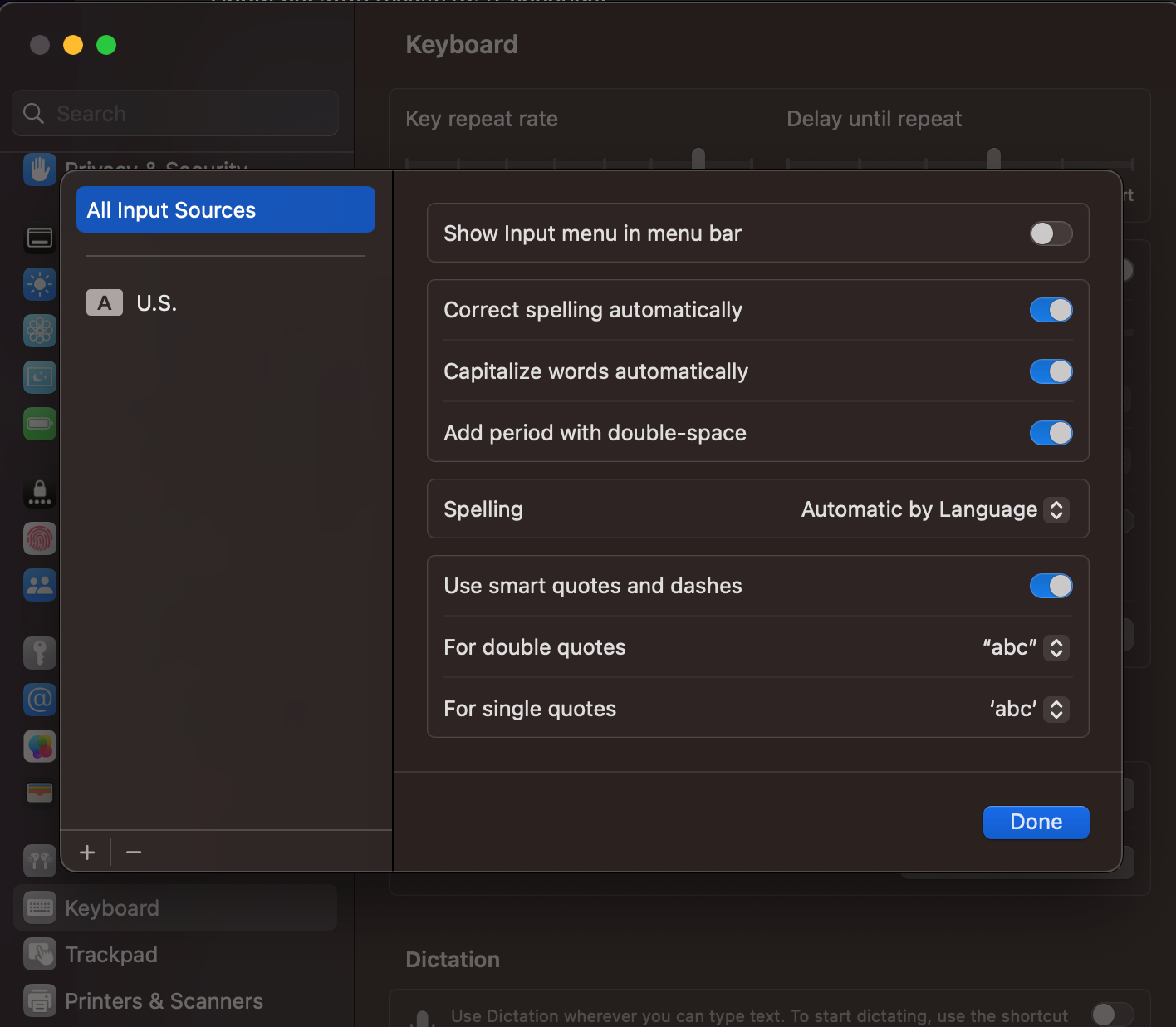
- Turn off autocorrect in Keyboard
- 
- Set to [Big cursor](https://www.lifewire.com/make-mac-mouse-pointer-bigger-2260808) for accessibility during presentation
- [some reports of memory leaks](https://www.techrepublic.com/article/macos-monterey-has-a-serious-memory-leak-problem-and-the-cause-has-been-found/) when doing this
- Fix trackpad direction: Trackpad -> Scroll & Zoom - Natural off
- Disable dictionary lookup: Trackpad -> Point & Click -> Look up & data detectors off
- (if using windows keyboard) [remap alt and cmd keys](https://superuser.com/questions/158561/how-can-i-remap-windows-and-alt-keys-in-os-x) for ergonomics
- **Finder settings**:
- Settings → advanced -> show filename extensions
- When performing a search -> Search the Current Folder
- Enable showing dotfiles (just hold Cmd + Shift + . (dot) in a Finder window)
- [Show path bar](https://www.tekrevue.com/tip/show-path-finder-title-bar/) in footer for easier navigation (View -> Show Path Bar)
- Prune the excessive sidebar bookmarks
- create "Work" folder and pin it
- Settings -> general - New Finder Windows show -> Work
- **Keyboard**:
- [remap command+Q to literally anything else](https://apple.stackexchange.com/questions/78948/how-to-disable-command-q-for-quit) - to prevent accidental close-all
- Shortcuts: copy picture of selected area to clipboard -> Cmd+E
- AUDIO KEYBOARD - currently using [SuperWhisper](https://superwhisper.com/) which I have ended up preferring over [Wispr AI](https://x.com/WisprAI/status/1840757312912564366)
- **MacOS Dock:**
- Remove everything from the Dock except: Finder, System Preferences and Trash
- Turn Dock Auto Hiding on - to get more screen real estate for presentations
- turn this on for MacOS Menu bar as well
- **Chrome extensions**: (tied to Chrome account)
- https://github.com/dnakov/little-rat to see chrome extension traffic
- Paywall blocker [https://github.com/iamadamdev/bypass-paywalls-chrome/](https://github.com/iamadamdev/bypass-paywalls-chrome/)
- See Tweets about any page [https://github.com/swyxio/Twitter-Links-beta](https://github.com/swyxio/Twitter-Links-beta?organization=sw-yx&organization=sw-yx) ([my blogpost here](https://www.swyx.io/twitter-metacommentary/))
- better history https://github.com/chrome-enhanced-history/enhanced-history
- [Morpheon Dark theme](https://chrome.google.com/webstore/detail/morpheon-dark/mafbdhjdkjnoafhfelkjpchpaepjknad?hl=en)
- [Lastpass](https://chrome.google.com/webstore/detail/lastpass-free-password-ma/hdokiejnpimakedhajhdlcegeplioahd?hl=en-US)
- [Display Anchors](https://chrome.google.com/webstore/detail/display-anchors/poahndpaaanbpbeafbkploiobpiiieko/related?hl=en)
- [React Devtools](https://chrome.google.com/webstore/detail/react-developer-tools/fmkadmapgofadopljbjfkapdkoienihi?hl=en)
- [Refined Github](https://github.com/sindresorhus/refined-github)
- [Code Copy](https://chrome.google.com/webstore/detail/codecopy/fkbfebkcoelajmhanocgppanfoojcdmg?hl=en)
- [Video Speed Controller](https://chrome.google.com/webstore/detail/video-speed-controller/nffaoalbilbmmfgbnbgppjihopabppdk?hl=en) ← **VERY HIGHLY RECOMMENDED**
- [Palettab](https://palettab.com/)
- [Privacy Badger](https://chrome.google.com/webstore/detail/privacy-badger/pkehgijcmpdhfbdbbnkijodmdjhbjlgp?hl=en-US)
- [RescueTime](https://chrome.google.com/webstore/detail/rescuetime-for-chrome-and/bdakmnplckeopfghnlpocafcepegjeap?hl=en-US)
- [uBlock Origin](https://chrome.google.com/webstore/detail/ublock-origin/cjpalhdlnbpafiamejdnhcphjbkeiagm?hl=en)
- [Octolinker](https://chrome.google.com/webstore/detail/octolinker/jlmafbaeoofdegohdhinkhilhclaklkp?hl=en)
## Setup Terminal
- Download, install, and set font - [Inconsolata for Powerline](https://github.com/powerline/fonts/blob/master/Inconsolata/Inconsolata%20for%20Powerline.otf) and [Meslo LG M for Powerline](https://github.com/powerline/fonts/blob/master/Meslo%20Slashed/Meslo%20LG%20M%20Regular%20for%20Powerline.ttf)
- [autosuggestions](https://github.com/zsh-users/zsh-autosuggestions/blob/master/INSTALL.md#oh-my-zsh): `git clone https://github.com/zsh-users/zsh-autosuggestions ${ZSH_CUSTOM:-~/.oh-my-zsh/custom}/plugins/zsh-autosuggestions`
- [syntax highlighting](https://github.com/zsh-users/zsh-syntax-highlighting/blob/master/INSTALL.md#oh-my-zsh)
- If you encounter warnings, you may need to [chmod stuff](https://stackoverflow.com/questions/13762280/zsh-compinit-insecure-directories) or warnings show at start of every session
```
$ sudo chmod -R 755 /usr/local/share/zsh
$ sudo chown -R root:staff /usr/local/share/zsh
```
- Copy my dotfiles (vimrc, zshrc, .gitignore_global): [https://gist.github.com/swyxio/7fa1009e460ecb818d5e6d9ca4616a05](https://gist.github.com/swyxio/7fa1009e460ecb818d5e6d9ca4616a05)
- `source ~/.zshrc` to load the zshrc
- Note: good guide to dotfiles here https://dotfiles.github.io/tutorials/ that i have not yet read
- note: gitconfig discusison here https://news.ycombinator.com/item?id=43170015
- am trying out https://github.com/romkatv/powerlevel10k
- You installed zsh above [ZSH](https://ohmyz.sh/), now set up the rest
- `git config --global init.defaultBranch main`
- `git config --global user.name "swyxio"`
- `git config --global user.email YOUR@EMAIL.HERE`
- once you have installed `diff-so-fancy`
- set `git config --global core.pager "diff-so-fancy | less --tabs=4 -RFX"` - makes for much nicer git diff
- You can also diff with this bash function `dif() { git diff --color --no-index "$1" "$2" | diff-so-fancy; }` or with VSCode `code --diff file1.js file2.js`.
- You can also try [https://github.com/dandavison/delta](https://github.com/dandavison/delta)
- customize the `/.oh-my-zsh/themes/agnoster` theme from dotfiles
- set font for Warp: https://warp.dev/
- only settings I really need to make are setting the font to "Inconsolata for Powerline" - which I downloaded above.
## Set up apps/environments
You should have already installed a bunch of stuff with Homebrew as per above. Below I will list other stuff that you may wish to use:
- [Github CLI](https://github.com/cli/cli): `brew install github/gh/gh`
- you need to **login to git** - if you have 2fa enabled, you cant use your normal github password. try pushing to any random repo and enter in a [Personal Access Token](https://stackoverflow.com/a/34919582) for password.
- then run `gh auth login`
- [add GitHub SSH key](https://docs.github.com/en/github/authenticating-to-github/generating-a-new-ssh-key-and-adding-it-to-the-ssh-agent) (not optional)
- Python: no more `pyenv` and [no more Anaconda](https://news.ycombinator.com/item?id=41388750) for me. the new hotness is [`uv` from Astral](https://astral.sh/blog/uv). it's a replacement for pip, virtualenv, pyenv, poetry, etc. very new but not a ton of personal experience and intend to try next time. `pip install uv`, then instead of future `pip install` use `uv pip install`, or `uv venv` instead of `virtualenv` or `python -m venv`. much faster and interchangeable with other tools... but still may have minor dependency resolution issues particularly for old projects.
- pyenv virtualenv needs some zshrc setup, or else get `Failed to activate virtualenv. Perhaps pyenv-virtualenv has not been loaded into your shell properly.` errors, which i fixed with [this](https://github.com/pyenv/pyenv-virtualenv/issues/387#issuecomment-847855719).
- install pytorch: `pip3 install torch torchvision`
- Setup [Node.js/NPM](https://nodejs.org/en/download/) using - you should already have [fnm](https://github.com/Schniz/fnm) (a faster alternative to [nvm](https://github.com/creationix/nvm)) from the Homebrew install done above so no separate download needed.
- `fnm install 22` to install node
- we did `brew install pnpm` earlier <- seems to be increasingly the norm
- `npm login`
- `npm config set loglevel="warn"`
- `npm i -g undollar` for removing $
- `npm install -g npm-check-updates` for updating deps
- `sudo npm install -g trash-cli` to add a `trash` command to so you dont permanently delete files
- `brew install yarn --ignore-dependencies` - [yarn](https://yarnpkg.com/en/docs/install#mac-stable) note
- you may need to [work around Mac OS Sierra](https://stackoverflow.com/questions/43780207/installing-node-with-brew-fails-on-mac-os-sierra)
- `brew install z` - doesnt work out of the box exactly - see my issue on the [rupa/z repo](https://github.com/rupa/z/issues/229) - homebrew changed the default install path of the z.sh script so just make sure you are pointing to the right new path - `. /opt/homebrew/etc/profile.d/z.sh` in your zshrc
- see [HN reviews of rupa/z](https://news.ycombinator.com/item?id=39001441), as well as some alternatives.
- Misc - stuff i used to install and maybe dont need anymore
- `pip3 install --user powerline-status`
- go to a neutral folder and `git clone && cd fonts && ./install.sh`
## Setup Apps
- I hate [Docker Desktop](https://hub.docker.com/editions/community/docker-ce-desktop-mac/) so i am using "docker" without it
- brew installed https://github.com/abiosoft/colima/ and
- `sudo curl -L https://github.com/docker/compose/releases/download/v2.5.1/docker-compose-darwin-aarch64 -o /usr/local/bin/docker-compose`
- `chmod +x /usr/local/bin/docker-compose`
- `brew install --cask notunes` - so that you [dont launch itunes/apple music](https://github.com/tombonez/noTunes)
- VLC: https://www.videolan.org/vlc/download-macosx.html
- you also need to reassign the default music player for music files to QuickTime or VLC - the usual way of "Always Open With" never works, you have to [do this](https://discussions.apple.com/thread/252345521?answerId=254430926022&sortBy=best#254430926022): `Select any MP3 file, Press "Command+i", Change "Open with:" to VLC, Click the "Change All…" button. Tada.`
- download [Audacity](https://www.audacityteam.org/download/mac/) - and [install ffmpeg](https://manual.audacityteam.org/man/installing_ffmpeg_for_mac.html) for audacity - the instructions are intentionally opaque - just go to https://lame.buanzo.org/#lameosx64bitdl and download and run the pkg - Audacity will detect it from there
- Emojis: I used to use [https://matthewpalmer.net/rocket/](https://matthewpalmer.net/rocket/) but now I just use the naive Mac emoji picker (hit Fn key)
- Privacy unfucker: [Pure Paste](https://apps.apple.com/app/id1611378436) from Sindre Sorhus
- Password Manager: I use both 1password and lastpass depending on contexts
- Window Manager: https://rectangleapp.com/ (there's mild history w/ [spectacle/magnet](https://github.com/rxhanson/Rectangle/discussions/673#discussioncomment-1760361) but they're basically the same thingz. 2024: try https://github.com/MrKai77/Loop open source)
- Screenshots: https://shottr.cc/ (shottr does OCR, but you may like a [dedicated OCR utility](https://github.com/schappim/macOCR))
- [Superhuman for Mac](http://superhuman.com/mac) and [https://mail.superhuman.com](https://mail.superhuman.com/)
- Clipboard Manager: I now just use the one that comes with Alfred since I bought a lifetime upgrade a while ago. has good search and images, and can add snippets.
- To explore: [Clipbook](https://news.ycombinator.com/item?id=40648404)
- App Quitter: https://swiftquit.com/ (Close Mac Applications Automatically When Their Windows Close)
- Loom: [https://www.loom.com/desktop](https://www.loom.com/desktop)
- Zoom: [https://zoom.us/download](https://zoom.us/download)
- create a meeting, share screen, record screen
- Caffeine (Keep Mac awake for talks): https://intelliscapesolutions.com/apps/caffeine
- maintained version: [Amphetamine](https://roaringapps.com/app/amphetamine) (thanks Matt Mischuk!) - but Caffeine is plenty
- [QuickShade](https://apps.apple.com/us/app/quickshade/id931571202?mt=12) (mac app controlled brightness)
- [NoTunes](https://github.com/tombonez/noTunes) - disable itunes/apple music
- Descript: [https://www.descript.com/download/mac](https://www.descript.com/download/mac)
- Stuff I no longer use often but will bring in when i have the need
- SkyFonts: [https://www.fonts.com/web-fonts/google]
- Disk Space: [Disk Inventory X](http://www.derlien.com/) - you can clean node modules with [this bash command](https://twitter.com/swyx/status/1064672618450579457?s=20) or as a [cronjob](https://gist.github.com/zephraph/9169b9de4568b858f4b0e45fc41218b7)(https://www.fonts.com/web-fonts/google)
- Chat: [Slack](https://slack.com/downloads/osx) and [Discord](https://discord.com/)
- Note taking:
- [Obsidian](https://obsidian.md/download) and set it up as mentioned in my post on [Obsidian as a Second Brain](https://www.swyx.io/obsidian-brain)
- Microsoft Todo: [https://apps.apple.com/app/apple-store/id1274495053?mt=8](https://apps.apple.com/app/apple-store/id1274495053?mt=8)
- SimpleNote: [https://apps.apple.com/us/app/simplenote/id692867256?ls=1&mt=12](https://apps.apple.com/us/app/simplenote/id692867256?ls=1&mt=12)
- Notion: [https://www.notion.so/desktop](https://www.notion.so/desktop)
- [https://chrome.google.com/webstore/detail/notion-web-clipper/knheggckgoiihginacbkhaalnibhilkk?hl=en](https://chrome.google.com/webstore/detail/notion-web-clipper/knheggckgoiihginacbkhaalnibhilkk?hl=en)
- Stretchly: [https://hovancik.net/stretchly/](https://hovancik.net/stretchly/)
- Editor: Download [Cursor](https://www.cursor.com/) use Settings Sync to sync across machines
- have to set up powerline fonts "Meslo LG M for Powerline" ([download](https://github.com/powerline/fonts/blob/master/Meslo%20Slashed/Meslo%20LG%20M%20Regular%20for%20Powerline.ttf))
- auto-close-tag v0.5.6
- auto-rename-tag v0.0.15
- Bookmarks v9.1.0
- code-settings-sync v3.1.2
- debugger-for-chrome v4.10.2
- es7-react-js-snippets v1.8.7
- graphql-for-vscode v1.12.1
- mdx v0.1.0
- prettier-vscode v1.6.1
- python v2018.9.2
- python v0.2.3
- rainbow-brackets v0.0.6 - this is now deprecated, use the native [`"editor.bracketPairColorization.enabled": true`](https://code.visualstudio.com/blogs/2021/09/29/bracket-pair-colorization)
- shades-of-purple v3.17.0
- vscode-graphql v0.1.5
- vscode-import-cost v2.9.0
- vscode-styled-components v0.0.23
- vscode-wakatime v1.2.3
- [TabNine](https://www.tabnine.com/) AI completions
- [GitHub Copilot](https://marketplace.visualstudio.com/items?itemName=GitHub.copilot)
- to try: [File Utils](https://marketplace.visualstudio.com/items?itemName=sleistner.vscode-fileutils) - recommended by [Stolinski](https://twitter.com/stolinski/status/1417247358430109697)
- [Screenflow 11](https://www.macupdate.com/app/mac/26915/screenflow/old-versions) download
---
## Other good "new laptop setup" lists:
- https://eugeneyan.com/writing/mac-setup/
- [Christoph Nakazawa](https://twitter.com/cpojer/status/1569797978881400832)'s setup: [Part 1](https://cpojer.net/posts/set-up-a-new-mac-fast), [Part 2](https://cpojer.net/posts/the-perfect-development-environment)
- [Robin Wieruch](https://www.robinwieruch.de/mac-setup-web-development/)'s setup
- [Mina Markham](https://github.com/minamarkham/formation)'s automated mac setup
- [Tania Rascia's setup](https://www.taniarascia.com/setting-up-a-brand-new-mac-for-development/?ck_subscriber_id=591519942)
- [Nick Nisi's dotfiles](https://github.com/nicknisi/dotfiles)
- [Mathias Bynens macos defaults](https://github.com/mathiasbynens/dotfiles/blob/master/.macos)
- [Jamon's MacOS maintenance tips](https://twitter.com/jamonholmgren/status/1175077165848653824)
- VMWare Tanzu house script: https://github.com/pivotal/workstation-setup
- Vendasta: https://github.com/vendasta/setup-new-computer-script
- You can [automate dotfiles/homebrew setup with Sheldon Hull's tool](https://www.sheldonhull.com/docs/shell/#installing-brew-packages)
- Physical equipment setups from prominent people: https://setups.co/
- [A decade of dotfiles](https://evanhahn.com/a-decade-of-dotfiles/) by Evan Hahn
- please send me yours!
- thanks [for Daniel Kehoe's mac setup](https://mac.install.guide/mac-setup/)
life is too short for this.
# New Mac Setup - from scratch
## Immediate first steps
- **Browser**: Kagi's Orion: https://kagi.com/orion/ set to default.
- IMMEDIATELY create a google meet, share screen, record screen (to get all permissions working so you dont have to restart browser later). can also do this via discord or zoom webapps - just start call share screen and get all the perms working ASAP)
- **Log in to**: (this helps with logins for the other services below)
- Twitter
- Github (more setup instructions below)
- Gmail
- Install [Warp](https://warp.dev/) (my normal terminal of choice, good for AI generated commands, but [memory hog](https://x.com/swyx/status/1869288346020954151))
- my .zshrc now includes [the very nice "please" bash function](https://github.com/pmarreck/dotfiles/blob/master/bin/functions/please.bash) which can replace Warp
- install https://ghostty.org/ and add [keyboard navigation config](https://x.com/TheAnirudh/status/1869379182008193313)
## Things that take a while to install
Get these going first so they can run in the background
- Install [ZSH](https://ohmyz.sh/) - `sh -c "$(curl -fsSL https://raw.github.com/ohmyzsh/ohmyzsh/master/tools/install.sh)"`
- Install [Homebrew](https://brew.sh/) - `/bin/bash -c "$(curl -fsSL https://raw.githubusercontent.com/Homebrew/install/HEAD/install.sh)"` and then
```bash
echo 'eval "$(/opt/homebrew/bin/brew shellenv)"' >> /Users/swyx/.zprofile
eval "$(/opt/homebrew/bin/brew shellenv)"
```
i have a bunch more stuff in `brew list` but i'm not sure what i use actively. You can mass install these - dump them in a `packages.txt` and then `brew install $(cat packages.txt)`
```
aom icu4c@76 libvmaf python@3.13
aribb24 imath libvorbis qemu
brotli jpeg-turbo libvpx rabbitmq
ca-certificates jpeg-xl libx11 rav1e
cairo krb5 libxau readline
capstone lame libxcb rubberband
certifi leptonica libxdmcp sdl2
cjson libarchive libxext snappy
colima libass libxrender speex
dav1d libb2 lima sqlite
docker libbluray little-cms2 srt
docker-completion libdeflate lz4 svt-av1
dtc libevent lzo tesseract
elixir libidn2 m4 theora
erlang libmicrohttpd mbedtls unbound
ffmpeg libnghttp2 mpdecimal unixodbc
flac libogg mpg123 vde
fnm libpng ncurses webp
fontconfig librist nettle wxwidgets
freetype libsamplerate opencore-amr x264
frei0r libslirp openexr x265
fribidi libsndfile openjpeg xorgproto
gettext libsodium openssl@3 xvid
gh libsoxr opus xz
giflib libssh p11-kit yt-dlp
glib libtasn1 pango z
gmp libtiff pcre2 zeromq
gnutls libtool pipx zimg
graphite2 libunibreak pixman zstd
harfbuzz libunistring pnpm
highway libusb postgresql@14
honcho libvidstab python-packaging
flyctl
```
- [Other things to try](https://evanhahn.com/a-decade-of-dotfiles/#tools-i-like):
- entr (rerun commands when files change)
- tig (git log replacement)
- [boop](https://gitlab.com/EvanHahn/dotfiles/-/blob/ece393e625bb8254fe05774df33bb5af8a73d7e7/home/zsh/.config/zsh/aliases.zsh#L48-56)
- [murder](https://gitlab.com/EvanHahn/dotfiles/-/blob/ece393e625bb8254fe05774df33bb5af8a73d7e7/home/bin/bin/murder)
- running
Either of these will prompt you to install Apple Command Line Tools - takes 15-25 minutes to download the damn thing so do this first. Don't run them in parallel.
## OS/Browser Settings
- **System Settings**:
- Disable Spotlight search for all miscellaneous crap except apps and system preferences
- including [stupid Developer option](https://www.howtogeek.com/231829/how-to-disable-developer-search-results-in-spotlight-on-a-mac/) (make sure to add [Xcode.app](http://xcode.app) to /Applications not /user/swyx/Applications)
- the "touch xcode.app" trick [failed recently](https://chatgpt.com/share/6847780b-c9f4-8012-a939-610b6514b281) for homebrew. fix is `xcode-select --install` and `sudo xcode-select -s /Library/Developer/CommandLineTools` i think
- Disable Ask Siri
- Turn off autocorrect in Keyboard
- 
- Set to [Big cursor](https://www.lifewire.com/make-mac-mouse-pointer-bigger-2260808) for accessibility during presentation
- [some reports of memory leaks](https://www.techrepublic.com/article/macos-monterey-has-a-serious-memory-leak-problem-and-the-cause-has-been-found/) when doing this
- Fix trackpad direction: Trackpad -> Scroll & Zoom - Natural off
- Disable dictionary lookup: Trackpad -> Point & Click -> Look up & data detectors off
- (if using windows keyboard) [remap alt and cmd keys](https://superuser.com/questions/158561/how-can-i-remap-windows-and-alt-keys-in-os-x) for ergonomics
- **Finder settings**:
- Settings → advanced -> show filename extensions
- When performing a search -> Search the Current Folder
- Enable showing dotfiles (just hold Cmd + Shift + . (dot) in a Finder window)
- [Show path bar](https://www.tekrevue.com/tip/show-path-finder-title-bar/) in footer for easier navigation (View -> Show Path Bar)
- Prune the excessive sidebar bookmarks
- create "Work" folder and pin it
- Settings -> general - New Finder Windows show -> Work
- **Keyboard**:
- [remap command+Q to literally anything else](https://apple.stackexchange.com/questions/78948/how-to-disable-command-q-for-quit) - to prevent accidental close-all
- Shortcuts: copy picture of selected area to clipboard -> Cmd+E
- AUDIO KEYBOARD - currently using [SuperWhisper](https://superwhisper.com/) which I have ended up preferring over [Wispr AI](https://x.com/WisprAI/status/1840757312912564366)
- **MacOS Dock:**
- Remove everything from the Dock except: Finder, System Preferences and Trash
- Turn Dock Auto Hiding on - to get more screen real estate for presentations
- turn this on for MacOS Menu bar as well
- **Chrome extensions**: (tied to Chrome account)
- https://github.com/dnakov/little-rat to see chrome extension traffic
- Paywall blocker [https://github.com/iamadamdev/bypass-paywalls-chrome/](https://github.com/iamadamdev/bypass-paywalls-chrome/)
- See Tweets about any page [https://github.com/swyxio/Twitter-Links-beta](https://github.com/swyxio/Twitter-Links-beta?organization=sw-yx&organization=sw-yx) ([my blogpost here](https://www.swyx.io/twitter-metacommentary/))
- better history https://github.com/chrome-enhanced-history/enhanced-history
- [Morpheon Dark theme](https://chrome.google.com/webstore/detail/morpheon-dark/mafbdhjdkjnoafhfelkjpchpaepjknad?hl=en)
- [Lastpass](https://chrome.google.com/webstore/detail/lastpass-free-password-ma/hdokiejnpimakedhajhdlcegeplioahd?hl=en-US)
- [Display Anchors](https://chrome.google.com/webstore/detail/display-anchors/poahndpaaanbpbeafbkploiobpiiieko/related?hl=en)
- [React Devtools](https://chrome.google.com/webstore/detail/react-developer-tools/fmkadmapgofadopljbjfkapdkoienihi?hl=en)
- [Refined Github](https://github.com/sindresorhus/refined-github)
- [Code Copy](https://chrome.google.com/webstore/detail/codecopy/fkbfebkcoelajmhanocgppanfoojcdmg?hl=en)
- [Video Speed Controller](https://chrome.google.com/webstore/detail/video-speed-controller/nffaoalbilbmmfgbnbgppjihopabppdk?hl=en) ← **VERY HIGHLY RECOMMENDED**
- [Palettab](https://palettab.com/)
- [Privacy Badger](https://chrome.google.com/webstore/detail/privacy-badger/pkehgijcmpdhfbdbbnkijodmdjhbjlgp?hl=en-US)
- [RescueTime](https://chrome.google.com/webstore/detail/rescuetime-for-chrome-and/bdakmnplckeopfghnlpocafcepegjeap?hl=en-US)
- [uBlock Origin](https://chrome.google.com/webstore/detail/ublock-origin/cjpalhdlnbpafiamejdnhcphjbkeiagm?hl=en)
- [Octolinker](https://chrome.google.com/webstore/detail/octolinker/jlmafbaeoofdegohdhinkhilhclaklkp?hl=en)
## Setup Terminal
- Download, install, and set font - [Inconsolata for Powerline](https://github.com/powerline/fonts/blob/master/Inconsolata/Inconsolata%20for%20Powerline.otf) and [Meslo LG M for Powerline](https://github.com/powerline/fonts/blob/master/Meslo%20Slashed/Meslo%20LG%20M%20Regular%20for%20Powerline.ttf)
- [autosuggestions](https://github.com/zsh-users/zsh-autosuggestions/blob/master/INSTALL.md#oh-my-zsh): `git clone https://github.com/zsh-users/zsh-autosuggestions ${ZSH_CUSTOM:-~/.oh-my-zsh/custom}/plugins/zsh-autosuggestions`
- [syntax highlighting](https://github.com/zsh-users/zsh-syntax-highlighting/blob/master/INSTALL.md#oh-my-zsh)
- If you encounter warnings, you may need to [chmod stuff](https://stackoverflow.com/questions/13762280/zsh-compinit-insecure-directories) or warnings show at start of every session
```
$ sudo chmod -R 755 /usr/local/share/zsh
$ sudo chown -R root:staff /usr/local/share/zsh
```
- Copy my dotfiles (vimrc, zshrc, .gitignore_global): [https://gist.github.com/swyxio/7fa1009e460ecb818d5e6d9ca4616a05](https://gist.github.com/swyxio/7fa1009e460ecb818d5e6d9ca4616a05)
- `source ~/.zshrc` to load the zshrc
- Note: good guide to dotfiles here https://dotfiles.github.io/tutorials/ that i have not yet read
- note: gitconfig discusison here https://news.ycombinator.com/item?id=43170015
- am trying out https://github.com/romkatv/powerlevel10k
- You installed zsh above [ZSH](https://ohmyz.sh/), now set up the rest
- `git config --global init.defaultBranch main`
- `git config --global user.name "swyxio"`
- `git config --global user.email YOUR@EMAIL.HERE`
- once you have installed `diff-so-fancy`
- set `git config --global core.pager "diff-so-fancy | less --tabs=4 -RFX"` - makes for much nicer git diff
- You can also diff with this bash function `dif() { git diff --color --no-index "$1" "$2" | diff-so-fancy; }` or with VSCode `code --diff file1.js file2.js`.
- You can also try [https://github.com/dandavison/delta](https://github.com/dandavison/delta)
- customize the `/.oh-my-zsh/themes/agnoster` theme from dotfiles
- set font for Warp: https://warp.dev/
- only settings I really need to make are setting the font to "Inconsolata for Powerline" - which I downloaded above.
## Set up apps/environments
You should have already installed a bunch of stuff with Homebrew as per above. Below I will list other stuff that you may wish to use:
- [Github CLI](https://github.com/cli/cli): `brew install github/gh/gh`
- you need to **login to git** - if you have 2fa enabled, you cant use your normal github password. try pushing to any random repo and enter in a [Personal Access Token](https://stackoverflow.com/a/34919582) for password.
- then run `gh auth login`
- [add GitHub SSH key](https://docs.github.com/en/github/authenticating-to-github/generating-a-new-ssh-key-and-adding-it-to-the-ssh-agent) (not optional)
- Python: no more `pyenv` and [no more Anaconda](https://news.ycombinator.com/item?id=41388750) for me. the new hotness is [`uv` from Astral](https://astral.sh/blog/uv). it's a replacement for pip, virtualenv, pyenv, poetry, etc. very new but not a ton of personal experience and intend to try next time. `pip install uv`, then instead of future `pip install` use `uv pip install`, or `uv venv` instead of `virtualenv` or `python -m venv`. much faster and interchangeable with other tools... but still may have minor dependency resolution issues particularly for old projects.
- pyenv virtualenv needs some zshrc setup, or else get `Failed to activate virtualenv. Perhaps pyenv-virtualenv has not been loaded into your shell properly.` errors, which i fixed with [this](https://github.com/pyenv/pyenv-virtualenv/issues/387#issuecomment-847855719).
- install pytorch: `pip3 install torch torchvision`
- Setup [Node.js/NPM](https://nodejs.org/en/download/) using - you should already have [fnm](https://github.com/Schniz/fnm) (a faster alternative to [nvm](https://github.com/creationix/nvm)) from the Homebrew install done above so no separate download needed.
- `fnm install 22` to install node
- we did `brew install pnpm` earlier <- seems to be increasingly the norm
- `npm login`
- `npm config set loglevel="warn"`
- `npm i -g undollar` for removing $
- `npm install -g npm-check-updates` for updating deps
- `sudo npm install -g trash-cli` to add a `trash` command to so you dont permanently delete files
- `brew install yarn --ignore-dependencies` - [yarn](https://yarnpkg.com/en/docs/install#mac-stable) note
- you may need to [work around Mac OS Sierra](https://stackoverflow.com/questions/43780207/installing-node-with-brew-fails-on-mac-os-sierra)
- `brew install z` - doesnt work out of the box exactly - see my issue on the [rupa/z repo](https://github.com/rupa/z/issues/229) - homebrew changed the default install path of the z.sh script so just make sure you are pointing to the right new path - `. /opt/homebrew/etc/profile.d/z.sh` in your zshrc
- see [HN reviews of rupa/z](https://news.ycombinator.com/item?id=39001441), as well as some alternatives.
- Misc - stuff i used to install and maybe dont need anymore
- `pip3 install --user powerline-status`
- go to a neutral folder and `git clone && cd fonts && ./install.sh`
## Setup Apps
- I hate [Docker Desktop](https://hub.docker.com/editions/community/docker-ce-desktop-mac/) so i am using "docker" without it
- brew installed https://github.com/abiosoft/colima/ and
- `sudo curl -L https://github.com/docker/compose/releases/download/v2.5.1/docker-compose-darwin-aarch64 -o /usr/local/bin/docker-compose`
- `chmod +x /usr/local/bin/docker-compose`
- `brew install --cask notunes` - so that you [dont launch itunes/apple music](https://github.com/tombonez/noTunes)
- VLC: https://www.videolan.org/vlc/download-macosx.html
- you also need to reassign the default music player for music files to QuickTime or VLC - the usual way of "Always Open With" never works, you have to [do this](https://discussions.apple.com/thread/252345521?answerId=254430926022&sortBy=best#254430926022): `Select any MP3 file, Press "Command+i", Change "Open with:" to VLC, Click the "Change All…" button. Tada.`
- download [Audacity](https://www.audacityteam.org/download/mac/) - and [install ffmpeg](https://manual.audacityteam.org/man/installing_ffmpeg_for_mac.html) for audacity - the instructions are intentionally opaque - just go to https://lame.buanzo.org/#lameosx64bitdl and download and run the pkg - Audacity will detect it from there
- Emojis: I used to use [https://matthewpalmer.net/rocket/](https://matthewpalmer.net/rocket/) but now I just use the naive Mac emoji picker (hit Fn key)
- Privacy unfucker: [Pure Paste](https://apps.apple.com/app/id1611378436) from Sindre Sorhus
- Password Manager: I use both 1password and lastpass depending on contexts
- Window Manager: https://rectangleapp.com/ (there's mild history w/ [spectacle/magnet](https://github.com/rxhanson/Rectangle/discussions/673#discussioncomment-1760361) but they're basically the same thingz. 2024: try https://github.com/MrKai77/Loop open source)
- Screenshots: https://shottr.cc/ (shottr does OCR, but you may like a [dedicated OCR utility](https://github.com/schappim/macOCR))
- [Superhuman for Mac](http://superhuman.com/mac) and [https://mail.superhuman.com](https://mail.superhuman.com/)
- Clipboard Manager: I now just use the one that comes with Alfred since I bought a lifetime upgrade a while ago. has good search and images, and can add snippets.
- To explore: [Clipbook](https://news.ycombinator.com/item?id=40648404)
- App Quitter: https://swiftquit.com/ (Close Mac Applications Automatically When Their Windows Close)
- Loom: [https://www.loom.com/desktop](https://www.loom.com/desktop)
- Zoom: [https://zoom.us/download](https://zoom.us/download)
- create a meeting, share screen, record screen
- Caffeine (Keep Mac awake for talks): https://intelliscapesolutions.com/apps/caffeine
- maintained version: [Amphetamine](https://roaringapps.com/app/amphetamine) (thanks Matt Mischuk!) - but Caffeine is plenty
- [QuickShade](https://apps.apple.com/us/app/quickshade/id931571202?mt=12) (mac app controlled brightness)
- [NoTunes](https://github.com/tombonez/noTunes) - disable itunes/apple music
- Descript: [https://www.descript.com/download/mac](https://www.descript.com/download/mac)
- Stuff I no longer use often but will bring in when i have the need
- SkyFonts: [https://www.fonts.com/web-fonts/google]
- Disk Space: [Disk Inventory X](http://www.derlien.com/) - you can clean node modules with [this bash command](https://twitter.com/swyx/status/1064672618450579457?s=20) or as a [cronjob](https://gist.github.com/zephraph/9169b9de4568b858f4b0e45fc41218b7)(https://www.fonts.com/web-fonts/google)
- Chat: [Slack](https://slack.com/downloads/osx) and [Discord](https://discord.com/)
- Note taking:
- [Obsidian](https://obsidian.md/download) and set it up as mentioned in my post on [Obsidian as a Second Brain](https://www.swyx.io/obsidian-brain)
- Microsoft Todo: [https://apps.apple.com/app/apple-store/id1274495053?mt=8](https://apps.apple.com/app/apple-store/id1274495053?mt=8)
- SimpleNote: [https://apps.apple.com/us/app/simplenote/id692867256?ls=1&mt=12](https://apps.apple.com/us/app/simplenote/id692867256?ls=1&mt=12)
- Notion: [https://www.notion.so/desktop](https://www.notion.so/desktop)
- [https://chrome.google.com/webstore/detail/notion-web-clipper/knheggckgoiihginacbkhaalnibhilkk?hl=en](https://chrome.google.com/webstore/detail/notion-web-clipper/knheggckgoiihginacbkhaalnibhilkk?hl=en)
- Stretchly: [https://hovancik.net/stretchly/](https://hovancik.net/stretchly/)
- Editor: Download [Cursor](https://www.cursor.com/) use Settings Sync to sync across machines
- have to set up powerline fonts "Meslo LG M for Powerline" ([download](https://github.com/powerline/fonts/blob/master/Meslo%20Slashed/Meslo%20LG%20M%20Regular%20for%20Powerline.ttf))
- auto-close-tag v0.5.6
- auto-rename-tag v0.0.15
- Bookmarks v9.1.0
- code-settings-sync v3.1.2
- debugger-for-chrome v4.10.2
- es7-react-js-snippets v1.8.7
- graphql-for-vscode v1.12.1
- mdx v0.1.0
- prettier-vscode v1.6.1
- python v2018.9.2
- python v0.2.3
- rainbow-brackets v0.0.6 - this is now deprecated, use the native [`"editor.bracketPairColorization.enabled": true`](https://code.visualstudio.com/blogs/2021/09/29/bracket-pair-colorization)
- shades-of-purple v3.17.0
- vscode-graphql v0.1.5
- vscode-import-cost v2.9.0
- vscode-styled-components v0.0.23
- vscode-wakatime v1.2.3
- [TabNine](https://www.tabnine.com/) AI completions
- [GitHub Copilot](https://marketplace.visualstudio.com/items?itemName=GitHub.copilot)
- to try: [File Utils](https://marketplace.visualstudio.com/items?itemName=sleistner.vscode-fileutils) - recommended by [Stolinski](https://twitter.com/stolinski/status/1417247358430109697)
- [Screenflow 11](https://www.macupdate.com/app/mac/26915/screenflow/old-versions) download
---
## Other good "new laptop setup" lists:
- https://eugeneyan.com/writing/mac-setup/
- [Christoph Nakazawa](https://twitter.com/cpojer/status/1569797978881400832)'s setup: [Part 1](https://cpojer.net/posts/set-up-a-new-mac-fast), [Part 2](https://cpojer.net/posts/the-perfect-development-environment)
- [Robin Wieruch](https://www.robinwieruch.de/mac-setup-web-development/)'s setup
- [Mina Markham](https://github.com/minamarkham/formation)'s automated mac setup
- [Tania Rascia's setup](https://www.taniarascia.com/setting-up-a-brand-new-mac-for-development/?ck_subscriber_id=591519942)
- [Nick Nisi's dotfiles](https://github.com/nicknisi/dotfiles)
- [Mathias Bynens macos defaults](https://github.com/mathiasbynens/dotfiles/blob/master/.macos)
- [Jamon's MacOS maintenance tips](https://twitter.com/jamonholmgren/status/1175077165848653824)
- VMWare Tanzu house script: https://github.com/pivotal/workstation-setup
- Vendasta: https://github.com/vendasta/setup-new-computer-script
- You can [automate dotfiles/homebrew setup with Sheldon Hull's tool](https://www.sheldonhull.com/docs/shell/#installing-brew-packages)
- Physical equipment setups from prominent people: https://setups.co/
- [A decade of dotfiles](https://evanhahn.com/a-decade-of-dotfiles/) by Evan Hahn
- please send me yours!
- thanks [for Daniel Kehoe's mac setup](https://mac.install.guide/mac-setup/)